How to Maintain a Plastic Card Printer: Essential Tips
Table of Contents []
- Your Card Printer Is Only as Good as How You Treat It - Plastic Card ID Explains Everything
- Why Maintenance Actually Matters More Than You Think
- Step-by-Step: How to Perform a Standard Cleaning
- Ribbon Handling: The Overlooked Half of Print Quality
- Card Stock, Storage, and Handling Best Practices
- Troubleshooting Common Maintenance-Related Print Defects
- Upgrades and Accessories That Support Long-Term Performance
- Trust Plastic Card ID to Keep Your Card Program Running at Its Best
Your Card Printer Is Only as Good as How You Treat It - Plastic Card ID Explains Everything
 Most people never think about printer maintenance until something goes wrong. A faded card, a ribbon jam, a smeared image that ruins a batch of 200 employee badges right before an event. Sound familiar? The reality is that a well-maintained plastic card printer delivers sharp, consistent results for years - while a neglected one quietly degrades until the output becomes embarrassing or the machine fails entirely.
This guide covers everything you need to know about how to maintain a plastic card printer, whether you have a compact desktop unit printing 500 cards a year or a high-throughput workhorse handling thousands of cards per month. The advice here is practical, specific, and built on decades of real-world experience supporting card programs across virtually every industry.
| Task | Frequency | Tools Needed | Difficulty |
|---|---|---|---|
| Cleaning card pass | Every ribbon change | Cleaning card (included in kit) | Very Easy |
| Printhead wipe | Every ribbon change | Isopropyl swab | Easy |
| Roller cleaning | Monthly or every 500 cards | Cleaning kit swabs and cards | Easy |
| Full internal cleaning | Every 1,000 cards | Cleaning kit | Moderate |
| Printhead replacement | As needed (typically 5,000-15,000 cards) | Replacement printhead | Moderate |
| Firmware update | Annually or as released | Computer, manufacturer site | Easy |
Why Maintenance Actually Matters More Than You Think
 It is tempting to treat a plastic card printer the same way most offices treat a laser printer - load it, use it, ignore it until it breaks. But card printers operate on fundamentally different principles. The thermal printhead, the ribbon transport system, the card feed rollers - every component touches the card directly during production, and any contamination affects output quality immediately and measurably.
Dust particles, skin oils from handling cards, adhesive residue, and microscopic debris accumulate with every print cycle. Over time, these contaminants embed into the cleaning rollers, settle on the printhead, and create the kind of consistent image defects that make your ID cards look anything but professional. The good news? Preventing this is genuinely simple when you understand the mechanics and build the right habits.
The True Cost of Skipping Cleaning Cycles
A cleaning kit for most professional card printers costs somewhere between $15-$40. A replacement printhead for a mid-range printer? That runs $75-$200 or more depending on the model. The math is not complicated. Every skipped cleaning cycle is a small deposit toward an expensive repair, and it happens gradually enough that most operators do not connect the cause and effect until it is too late.
Beyond hardware damage, there is also the cost of wasted supplies. Ribbon panels, card stock, laminate film - these are not cheap. A printer running dirty wastes materials at an accelerating rate, producing more rejected cards, requiring reprints, and consuming ribbon panels that should have lasted longer. Maintenance is not overhead; it is supply chain efficiency.
How Often Do You Actually Need to Clean?
The standard recommendation across leading brands - including Evolis, Fargo, Zebra, and Matica - is to run a cleaning card every time you change a ribbon. For most organizations, that translates to roughly every 200-300 prints depending on the ribbon type. High-volume programs printing thousands of cards monthly should also perform a deeper internal cleaning every 1,000 cards using a full cleaning kit with swabs, cards, and roller cleaners.
Low-volume users sometimes assume they need to clean less frequently because they print so rarely. That logic backfires - printers sitting idle collect dust in ways that active printers do not, and dried-on debris from infrequent use can be harder to clear than fresh contamination. If your printer sits unused for more than two to three weeks, run a cleaning card before your next batch regardless of where you are in the normal cycle.
Reading the Warning Signs Early
Printers communicate maintenance needs if you pay attention. Horizontal white lines across the printed image are almost always a dirty or damaged printhead. Inconsistent color density - some panels printing rich and others looking washed out - typically indicates contamination on the rollers or printhead surface. Cards sticking together, feeding at odd angles, or jamming mid-transport point to dirty or worn feed rollers that have lost their grip on clean card stock.
Catching these signs early means a cleaning kit fixes the problem in ten minutes. Ignoring them until output quality degrades significantly often means the damage has progressed to hardware components that require replacement rather than cleaning. Train your card program operator to do a quick visual check on every batch and flag deviations immediately.
Step-by-Step: How to Perform a Standard Cleaning
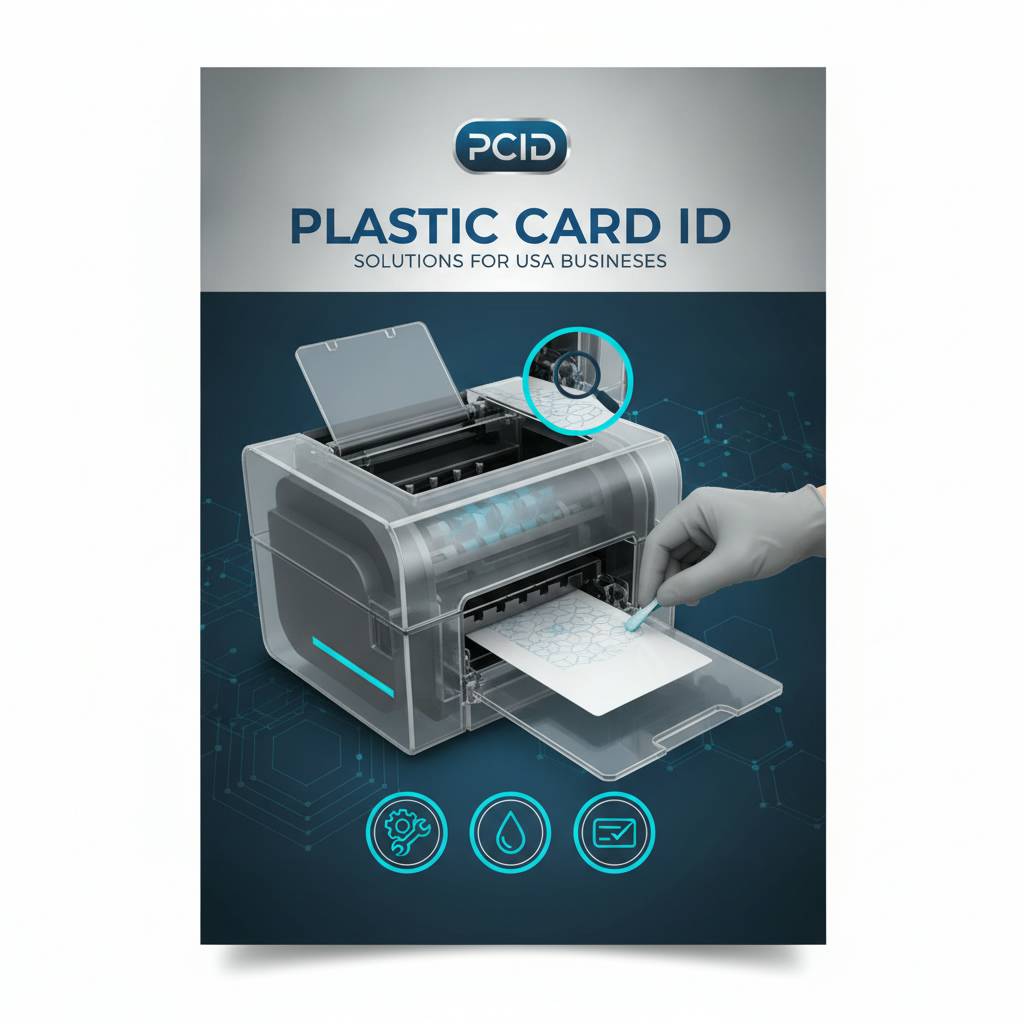
The specific cleaning process varies slightly by printer model, but the core sequence is consistent across every professional card printer brand. Understanding the general workflow helps you build good habits even if you switch printer models over time. Most manufacturers include cleaning supplies with new printers; replacement kits are available through CPE when your initial supply runs out.
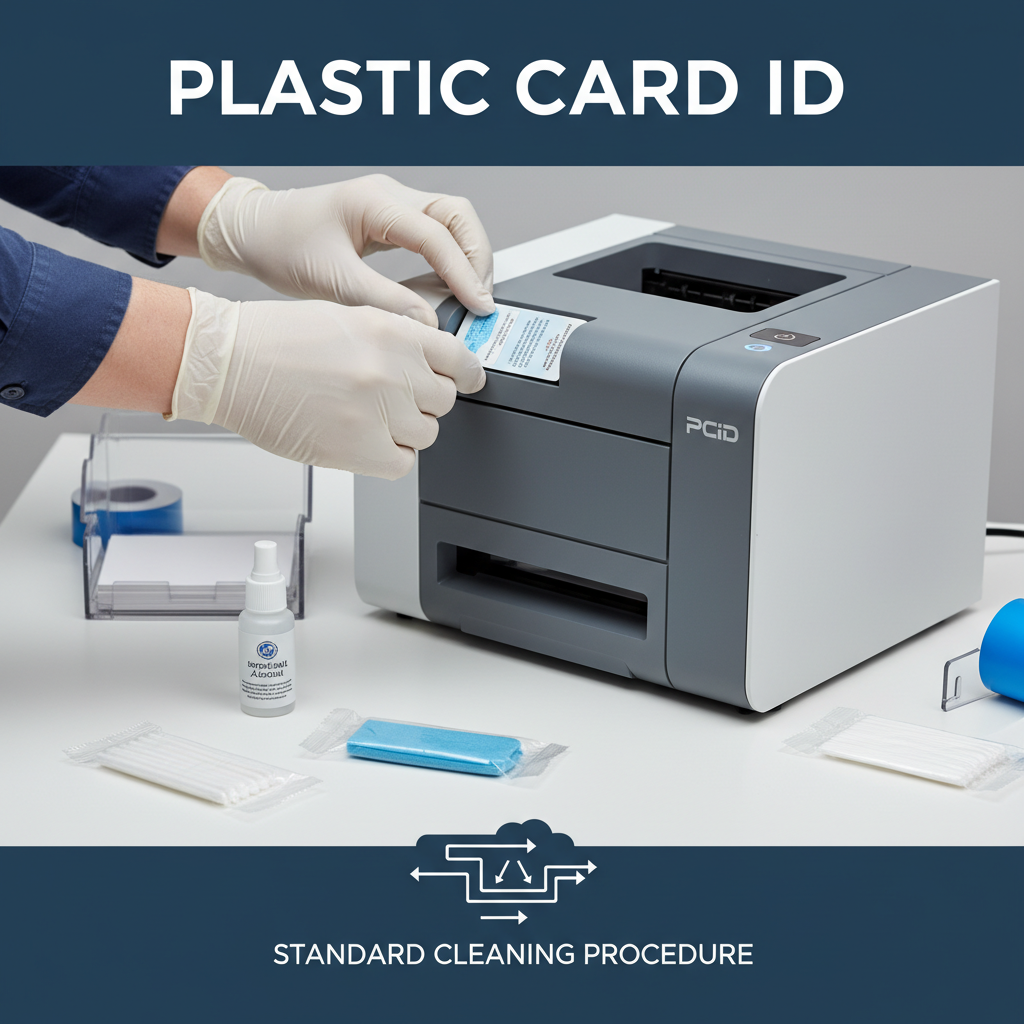
Never use compressed air, household cleaners, paper towels, or tap water near your printer's internal components. These approaches either introduce new contaminants, push debris deeper into the mechanism, or leave behind residue that causes worse problems than the original dirt. Always use the cleaning tools specifically designed for thermal card printers - they are engineered to remove debris without leaving anything behind.
Cleaning the Printhead Correctly
The printhead is the most sensitive component in your card printer and the most critical to clean properly. Power down the printer and open the ribbon compartment. Using a cotton swab lightly dampened with isopropyl alcohol (90% or higher purity - nothing lower), gently wipe the printhead element in a single direction. Do not scrub back and forth; always wipe in one direction to avoid pushing contamination across the printhead surface.
Allow the printhead to dry completely before closing the ribbon compartment and resuming printing. Typically this takes 30 seconds to two minutes depending on ambient temperature. A clean printhead is the single most impactful maintenance action you can take for image quality, and it takes less than five minutes to do correctly. Most operators who have printhead problems admit they have never cleaned this component at all.
For contact information and supply ordering, reach out directly at 800.835.7919. The team at CPE can recommend the correct cleaning kit for your specific printer model and walk you through the process for any brand in the lineup.
Running a Cleaning Card Through the Feed Path
Cleaning cards look like standard PVC cards but are saturated with a mild cleaning solution and sometimes coated with a slightly abrasive surface. When run through the card feed path, they pick up debris from the transport rollers, dislodge particles from the card track, and leave the entire feed mechanism notably cleaner than it was. Most card printers have a dedicated cleaning mode accessible through the front panel or software that walks you through the process automatically.
Insert the cleaning card per your printer's instructions - usually through the manual feed slot - and allow the printer to run its cleaning cycle. The card may pass through multiple times depending on the model. When it exits, inspect it visually: dark smudges, dust particles, and debris on the used cleaning card's surface tell you exactly how much contamination your printer was carrying. A surprising amount accumulates between cleanings even in clean office environments.
Roller and Internal Path Maintenance
The feed rollers in a card printer grip blank card stock and move it through the print path with precision. Over time, skin oils transferred from handling cards by hand, dust, and card surface coatings build up on the roller surface and reduce their grip coefficient. The result is misfeeds, skewed card travel, and inconsistent positioning under the printhead - all of which degrade output quality in ways that are hard to diagnose without knowing what to look for.
Cleaning kit swabs dampened with isopropyl alcohol, applied carefully to accessible rollers with the printer powered down, remove this buildup effectively. Some printers automate roller cleaning through dedicated cleaning card designs with textured surfaces that scrub the rollers as they pass through. Combining both methods - manual swabbing plus cleaning card passes - gives the most thorough result. Document your cleaning dates to stay on a consistent schedule rather than guessing.
Ribbon Handling: The Overlooked Half of Print Quality
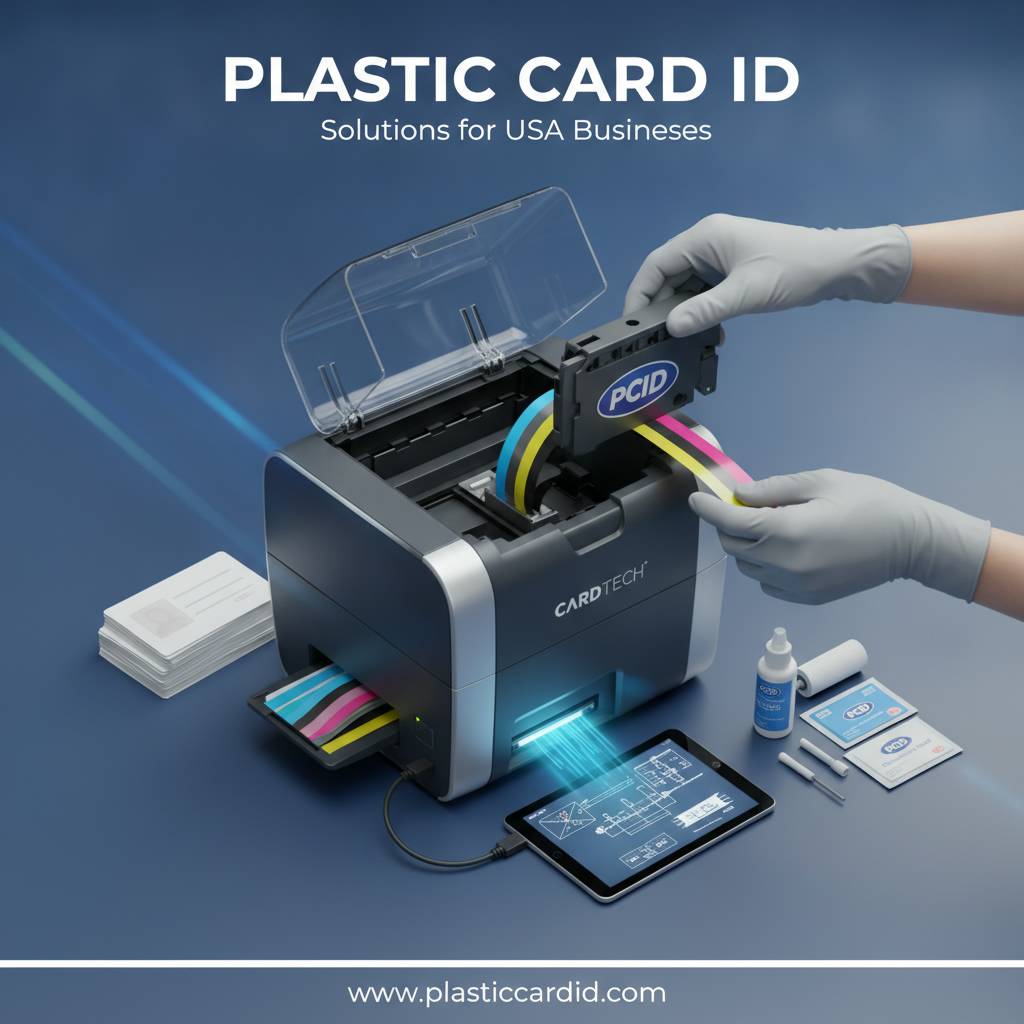 Even the cleanest printer in the world cannot produce good output with a damaged, improperly stored, or wrong-specification ribbon. Ribbons are precision consumables - the dye panels, resin panels, overlay coatings, and back-coating layers are manufactured to tight tolerances. How you handle and store them before they go into the printer has a direct effect on print quality and how many cards you get per ribbon roll.
Store ribbons in a cool, dry location away from direct sunlight and heat sources. Temperature extremes cause the dye panels to shift, the film layers to wrinkle, and the adhesive back-coating to become inconsistent - all of which produce defects you will spend time troubleshooting while the actual cause sits in your supply cabinet. Treat ribbons as precision consumables, not generic office supplies.
Matching Ribbon Type to Application
YMCKO ribbons (yellow, magenta, cyan, black resin, overlay) are the standard for full-color photo-quality card printing - the kind used for employee ID cards, student IDs, membership cards, and access credentials. Monochrome ribbons in black, blue, gold, silver, red, or white are used for single-color designs and deliver significantly more prints per roll, making them cost-effective for text-only or logo-only applications.
Specialty ribbons exist for specific applications - scratch-off panels for loyalty or gaming cards, fluorescent UV panels for security marks visible only under UV light, and combination ribbons with both color and monochrome sections for complex designs in a single pass. Using the wrong ribbon type for an application wastes money, produces inferior output, and in some cases can cause mechanical issues if the ribbon is not compatible with your printer's tension and tracking specifications.
Loading and Unloading Without Causing Damage
Handle ribbons by the cassette or spool ends only - never touch the ribbon film itself. Fingerprints on the dye panels transfer oils to the printhead and create visible defects in the print. When loading, follow your printer's threading path precisely; a ribbon loaded with even slight misalignment will jam mid-print or print with tracking errors that waste an entire card and consume additional ribbon panels unnecessarily.
When removing a partially used ribbon, store it in the original packaging or a sealed plastic bag to prevent dust accumulation on the unused panels. Partially used YMCKO ribbons are particularly vulnerable to dust contamination because the dye panels attract particulate matter. A ribbon stored carelessly between print runs may look fine on the spool but produce visibly degraded output when reinstalled.
Card Stock, Storage, and Handling Best Practices
 The blank cards you feed into a printer are not passive participants in the printing process - their surface condition, storage history, and handling before printing directly affect the final output and the wear rate on your printer's internal components. Contaminated card surfaces transfer debris to rollers and printheads just as surely as airborne dust does, and in some cases faster.
Standard CR80 PVC cards (the size of a credit card, 3.375 x 2.125 inches) are the industry baseline for professional card printers. Cards should be stored in their original sealed packaging until ready to use, kept away from humidity, heat, and direct sunlight, and handled at the edges rather than the print surfaces. The cleaner your input cards, the cleaner your printer stays between maintenance cycles.
Why Card Quality Affects Printer Longevity
Low-quality PVC cards, off-spec thickness, or cards with surface coatings not compatible with your printer's ribbon chemistry can cause significant problems. Cards that are too thick stress the card transport mechanism. Cards with surface treatments designed for inkjet printing will not accept thermal dye transfer properly, producing muddy colors and poor adhesion. Cards with dust or debris on their surfaces act as sandpaper against the printhead with every pass.
Always use card stock rated and recommended for your specific printer model. The brands carried by CPE - Evolis, Fargo, Zebra, and Matica - each have card stock specifications documented in their printer manuals. Staying within those specifications protects both your output quality and your hardware warranty. Deviating from them to save a few cents per card is a false economy that typically costs far more in repairs and wasted supplies.
Handling Printed Cards After Production
Freshly printed cards need a moment to fully cure before handling the printed surfaces. Immediately stacking warm cards printed with dye-sublimation ribbon panels can cause slight image transfer between stacked cards - a phenomenon called blocking - that leaves faint ghost impressions on card surfaces. Allow cards to cool for 15-30 seconds before stacking, or use a card output hopper that handles spacing automatically.
For cards with laminate overlaminates applied by an inline lamination module, the laminate bonds more fully over the first few minutes after printing. Aggressive bending or surface pressure on freshly laminated cards can create micro-delamination at the edges. Store completed card batches flat, in card sleeves or carriers, and away from direct heat sources to protect the finished product until it reaches the end user.
Troubleshooting Common Maintenance-Related Print Defects
Even with good maintenance habits, card printers occasionally produce output that needs investigation. Understanding the most common defect types and what causes them allows you to diagnose and resolve problems quickly rather than spending hours guessing or waiting on support. Most of what looks like a hardware failure is actually a maintenance or supplies issue with a straightforward fix.
Document defects when they occur - take a photo of the problematic card next to a well-printed card for comparison, note the ribbon batch number, the card stock used, and how many cards have been printed since the last cleaning. This information dramatically speeds up diagnosis whether you are troubleshooting yourself or working with a support team.
Horizontal Lines and Streaks
Thin, consistent horizontal lines running across a printed card - sometimes called dropout lines or banding - are the signature defect of a dirty or damaged printhead. If cleaning the printhead with an isopropyl swab does not resolve the lines within one to two subsequent cards, the printhead may have a burned-out element that requires replacement. Printhead damage is often caused by debris scoring the printhead surface or by printing with an incompatible ribbon type.
Never attempt to clean the printhead with anything abrasive - rough materials scratch the element surface and permanently damage the precision heating array. If a standard isopropyl cotton swab wipe does not resolve the defect, order a replacement printhead rather than escalating the cleaning approach. Printheads for most professional card printers are user-replaceable with basic tools and clear instructions.
Color Shifting and Panel Misregistration
When the YMCKO color panels print slightly offset from each other - producing a blurry or rainbow-fringed image - the issue is usually with ribbon tracking or the card not advancing with precise consistency. Dirty transport rollers that slip slightly between panel passes are a common cause. A thorough roller cleaning followed by a test print resolves this in the majority of cases without any hardware adjustment.
If color shifting persists after cleaning, check the ribbon cassette seating - a cassette that is not fully seated in its guides will not track consistently. Also inspect the ribbon for physical damage like creases, tears, or areas where the back-coating has separated, all of which cause tracking irregularities. Replacing the ribbon with a fresh roll is always worth trying before pursuing deeper mechanical investigation.
Card Jams and Feed Errors
- Inspect the card input hopper for cards that are stuck together, warped, or loaded at an angle before assuming a mechanical problem.
- Check card thickness against your printer's specifications - cards even slightly outside the rated thickness range jam with frustrating regularity.
- Clean the feed rollers with a cleaning card and manual swabbing - reduced roller grip is the leading cause of card jams in well-used printers.
- Remove all cards and debris from the card path before attempting to clear a jam - forcing a jammed card can damage rollers and the card track itself.
- Avoid manually pulling cards backward through the print path - always advance jammed cards forward through the exit slot using the printer's jam-clearing procedure outlined in the user manual.
Card jams that recur in exactly the same position during every print cycle often indicate a worn or damaged roller at that specific location in the card path. This is a component replacement scenario rather than a cleaning scenario, and CPE carries replacement parts and accessories for the printer brands in the lineup to get programs back up and running quickly.
Upgrades and Accessories That Support Long-Term Performance
 Maintenance is not only about cleaning - it also includes keeping your printer properly equipped for the demands you place on it. Running a printer beyond its rated monthly volume, using it for card types outside its design specifications, or operating it without available accessories that would ease mechanical stress all accelerate wear and increase maintenance burden. The right accessories make both the printer and your workflow perform better simultaneously.
Beyond cleaning supplies, CPE supplies a full range of accessories including input hoppers for higher-volume batch printing, lamination modules for card durability, encoding upgrades for magnetic stripe and smart chip applications, and card carriers and sleeves for protecting finished cards. Outfitting your printer correctly for your actual use case reduces strain, reduces maintenance frequency, and extends the productive life of the hardware significantly.
When to Consider a Printer Upgrade Instead of Continued Maintenance
No amount of maintenance extends a printer's life indefinitely. When a printer begins requiring frequent printhead replacements (more than one per year at normal operating volumes), experiences recurring mechanical issues despite thorough cleaning, or simply cannot keep pace with your growing card program volume, the honest calculation often favors replacement over ongoing repair costs. Entry-level printers like the Evolis Badgy200 are designed for low-volume programs - pushing them beyond their design parameters shortens their lifespan materially regardless of how well they are maintained.
Mid-range printers like the Evolis Zenius and Primacy2 handle 1,000 to 6,000 cards per month reliably with proper maintenance and represent excellent value for growing programs. Organizations needing premium edge-to-edge output should consider the Evolis Agilia. High-speed on-site badge needs are served by the Matica Event Printer. Fargo and Zebra models bring additional options for security-focused ID programs with specific encoding and security feature requirements. Matching printer capability to your actual production volume is the single most important factor in long-term reliability.
Encoding Modules and Their Maintenance Needs
Magnetic stripe encoding modules, smart card contact and contactless encoding heads, and other optional modules installed in your printer each have their own maintenance requirements. Magnetic encoding heads accumulate ferrous debris from the magnetic stripe surface over time and benefit from periodic cleaning with isopropyl swabs in the same way that audio tape heads do. Contact smart card encoding connectors should be inspected periodically for debris or oxidation that could affect reliable chip communication.
Contactless RFID encoding modules have no physical contact with the card and generally require less maintenance than contact-based modules, but the antenna coil area should still be kept free of metallic debris that could affect field strength. Document encoding errors - cards that fail to encode consistently - as carefully as print defects, since encoding problems that develop gradually often trace back to maintenance issues rather than hardware failures.
Trust Plastic Card ID to Keep Your Card Program Running at Its Best
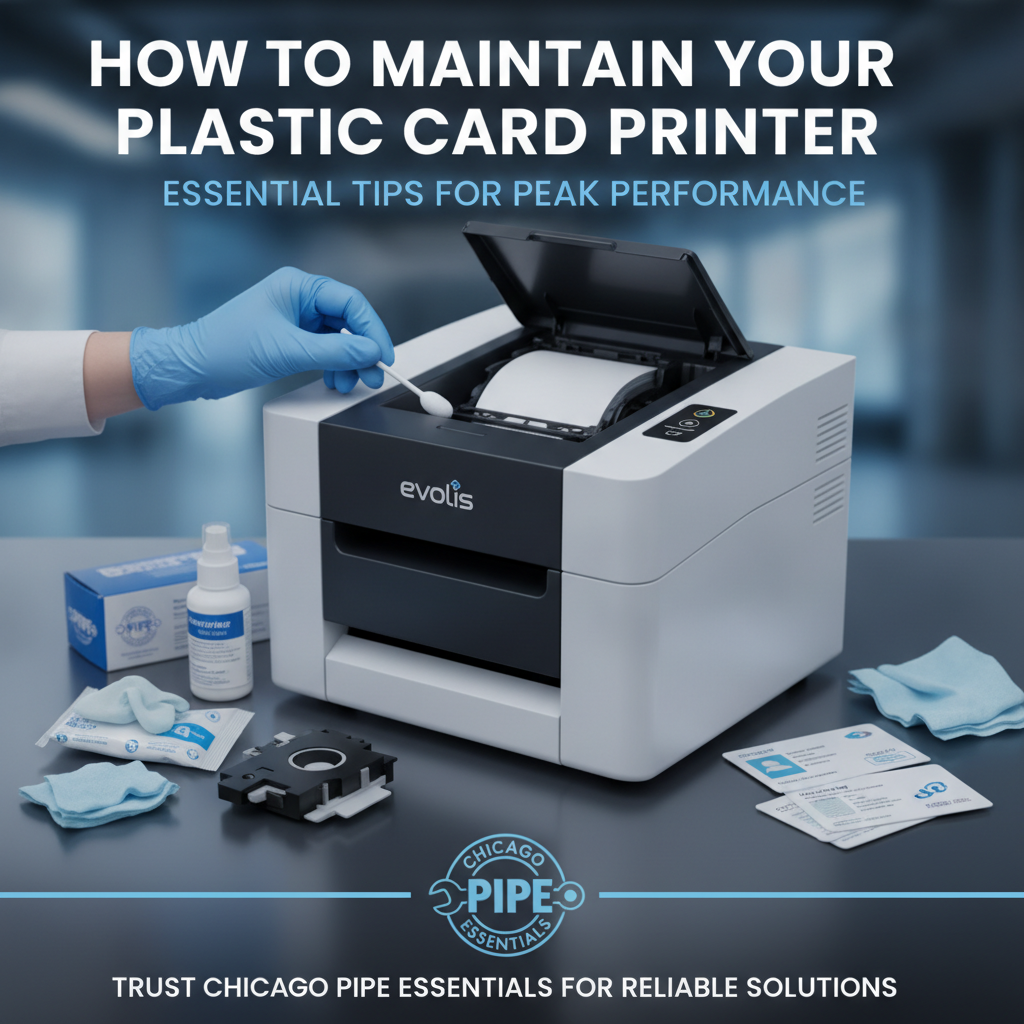 Knowing how to maintain a plastic card printer is knowledge that pays for itself every single time you run a print batch without a defect, every ribbon that lasts its rated print count, and every printhead that reaches its expected lifespan without early replacement. Good maintenance is not a chore - it is a straightforward investment that protects thousands of dollars in hardware and supplies while delivering consistently professional results.
Whether you are setting up a card program for the first time, upgrading an existing printer fleet, or simply trying to get more reliable performance from equipment you already own, the depth of experience behind CPE makes a genuine difference. With over 25 years in the industry, more than 100,000 customers served, and a curated lineup of professional-grade printers and supplies from Evolis, Fargo, Zebra, and Matica, CPE brings practical expertise to every conversation.
Talk to the Experts Before Your Next Purchase or Reorder
The right cleaning kit, the right ribbon specification, the right accessories for your print volume and card type - these are decisions that benefit from guidance rather than guesswork. The team at Plastic Card ID can match your specific program requirements to the exact supplies and hardware that will serve you best, whether you are printing employee ID cards, membership cards, loyalty cards, access control cards, student IDs, hotel key cards, event credentials, or any other professional card application.
Call Plastic Card ID today at 800.835.7919 - your card program deserves the best tools and the expertise to use them right.
From cleaning kits to complete printer systems, Plastic Card ID has everything you need to keep your plastic card printer producing professional results, day in and day out. Reach out now and put 25 years of card printing expertise to work for your organization.
Previous Page