How to Replace Card Printer Ribbon: Step-by-Step Guide
Table of Contents []
- How to Replace a Card Printer Ribbon - A Complete Guide from Plastic Card ID
- Understanding Card Printer Ribbons Before You Replace Anything
- Step-by-Step: How to Replace a Card Printer Ribbon
- Brand-Specific Ribbon Replacement Tips
- Troubleshooting Common Ribbon Issues After Replacement
- Supplies That Work Alongside Your Ribbon Replacement Routine
- Why Businesses Across the U.S. Rely on Plastic Card ID
How to Replace a Card Printer Ribbon - A Complete Guide from Plastic Card ID
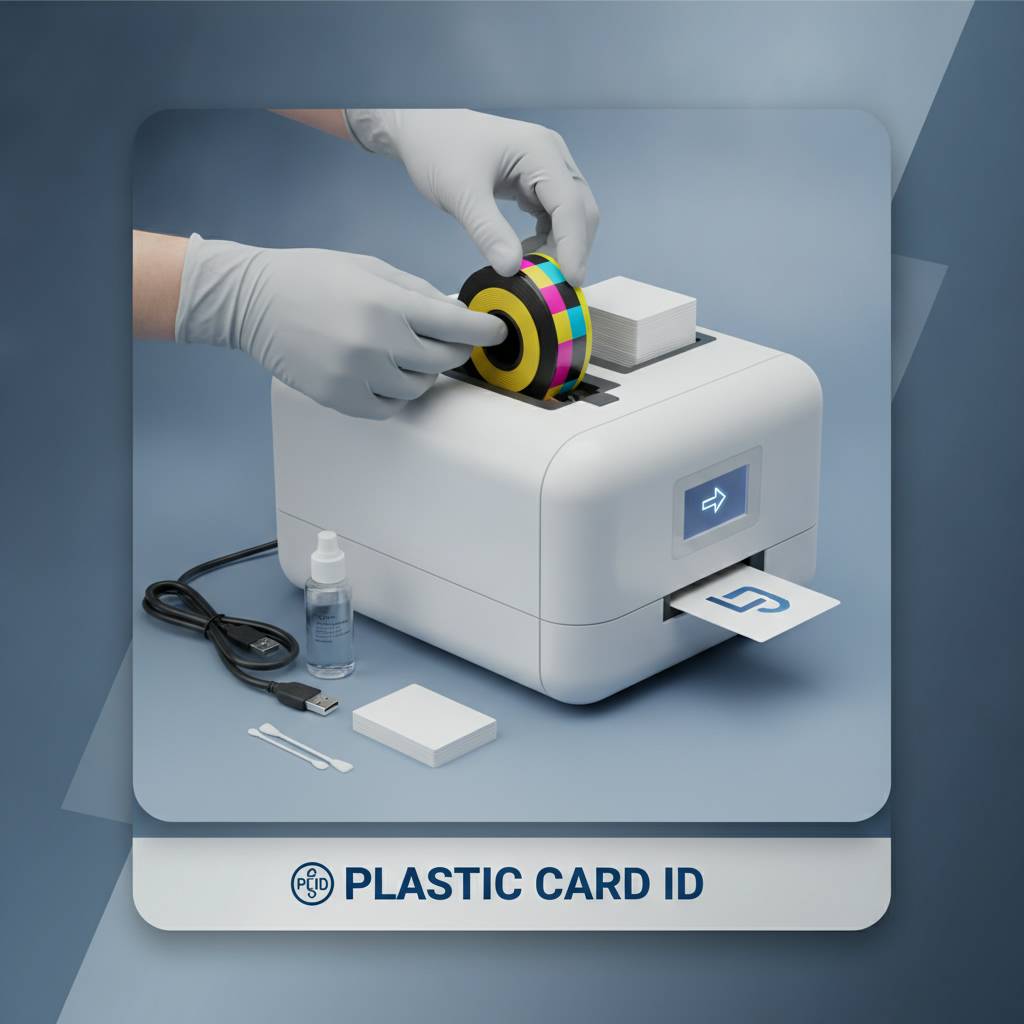 Replacing a card printer ribbon sounds simple enough - until you're standing in front of a machine you've never opened before, holding a spool you're not sure goes in right-side up, with a stack of blank cards waiting and a line of employees behind you. It happens. Knowing exactly how to swap a ribbon correctly the first time saves wasted panels, protects your printhead, and keeps your card program running without interruption.
This guide walks you through the full process - step by step, brand by brand, with practical tips that go beyond what the manual tells you. Whether you're running an Evolis Badgy200 for occasional ID printing or a high-throughput Fargo system cranking out hundreds of cards a week, the fundamentals of ribbon replacement apply across the board. Let's dig in.
| Ribbon Type | Best For | Typical Yield (Cards) | Approx. Cost Range |
|---|---|---|---|
| YMCKO (Full Color) | Employee IDs, membership cards | 200-500 cards | $40-$120 |
| Monochrome (Black) | Text-only, barcodes | 1,000-2,000 cards | $20-$55 |
| YMCKOK (Full Color Black) | Cards needing crisp black text | 200-400 cards | $50-$130 |
| Specialty / Overlay | Laminate overlay, security | Varies | $30-$90 |
Understanding Card Printer Ribbons Before You Replace Anything
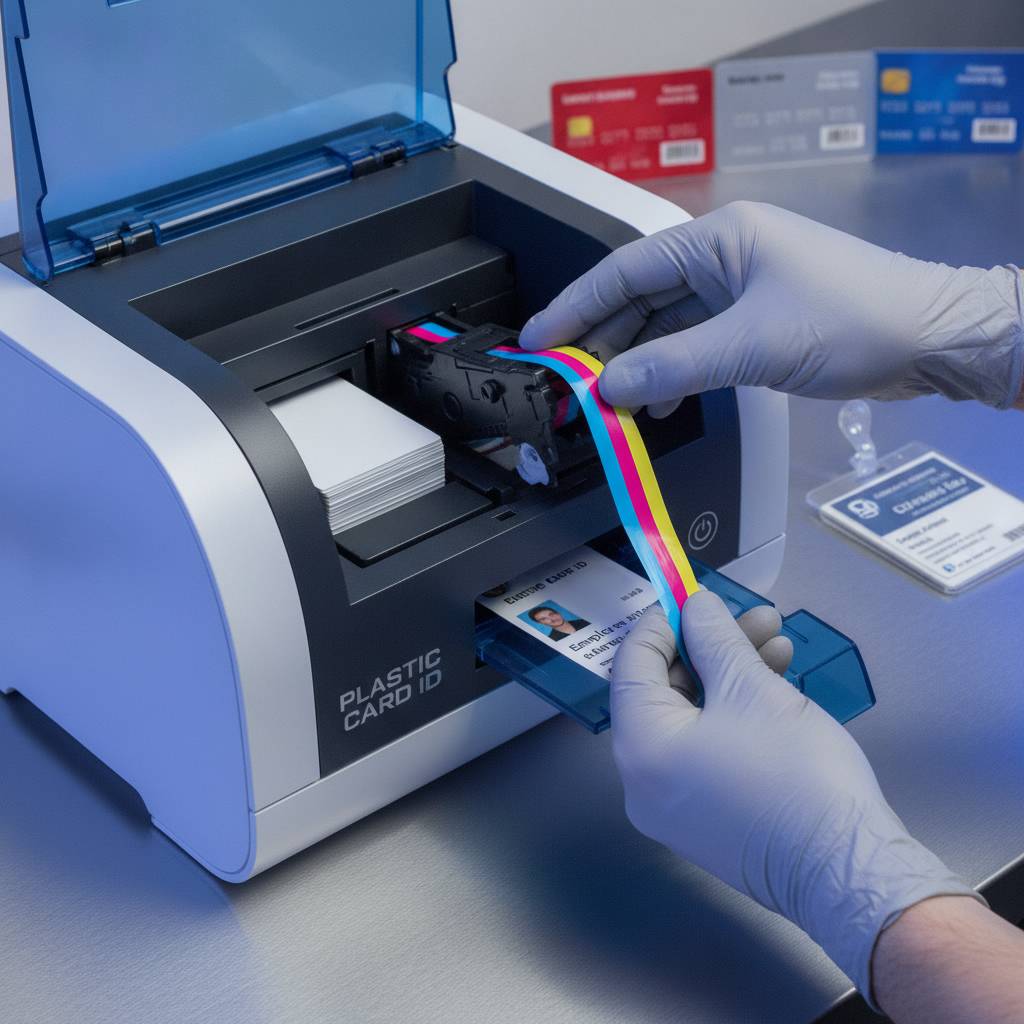 A little knowledge goes a long way. Card printer ribbons are not interchangeable between brands or even between models of the same brand - a ribbon cartridge designed for an Evolis Primacy2 will not fit a Fargo DTC1250e. Before pulling the old ribbon out and reaching for a replacement, confirm you have the correct part number for your specific printer model. Most manufacturers encode this information on the ribbon packaging, and CPE stocks ribbons matched precisely to each printer in the lineup.
There are several ribbon types you'll encounter. YMCKO ribbons are the workhorses of full-color ID printing, delivering yellow, magenta, cyan, black, and overlay panels in a single pass. Monochrome ribbons are single-color resin ribbons that produce sharp black or other single-color output, ideal for text-heavy cards where full color isn't needed. Specialty ribbons include fluorescent, silver, gold, and custom security options. Knowing which type your program requires before ordering means no downtime waiting on a re-order.
How Ribbon Panels Work
Each YMCKO ribbon is segmented into repeating panel sets. Every time the printer runs a card, it advances the ribbon precisely one panel set. This means a ribbon rated for 200 cards has 200 complete YMCK overlay sequences printed in sequence along its length. Partial panel usage still consumes a full panel set, so avoid printing test cards unnecessarily.
When the ribbon runs out, the printer detects the end of the ribbon either through a sensor or through a memory chip embedded in the cartridge (depending on brand). Evolis printers, for instance, use a smart chip on the ribbon cartridge that communicates remaining ribbon count directly to the printer's internal software. This is why using genuine OEM ribbons matters - third-party ribbons may not communicate correctly with the printer.
Matching the Right Ribbon to Your Printer Model
This is where many buyers make a costly mistake. Ribbon compatibility is not just about physical fit - it's also about calibration. Each ribbon is calibrated to the specific heat output of a given printhead. Using a ribbon not matched to your printer model can result in under- or over-saturation, banding, or even printhead damage over time.
Here is what to check when selecting a replacement ribbon: confirm your printer's exact model number (usually on a label on the bottom or back of the unit), then match that to the ribbon's compatibility list. At CPE, this information is clearly listed for every ribbon SKU, making cross-reference fast and accurate.
When to Order Ribbon Replacements
Don't wait until the ribbon runs out to order a replacement. Proactive ribbon management is one of the simplest ways to eliminate card printing downtime. Most printers display a low-ribbon warning when roughly 10-20 cards remain on the ribbon. Use that warning as a reorder trigger, not a "print fast before it dies" signal.
If your organization prints a consistent volume - say, 200 cards per week - calculate your ribbon burn rate and establish a standing reorder cycle. High-volume operations running Evolis Primacy2 or Zebra ZC300 printers should consider keeping at least one backup ribbon in stock at all times. The cost of a spare ribbon is trivial compared to the cost of a stalled onboarding day or a missed event credential run.
Step-by-Step: How to Replace a Card Printer Ribbon
The actual replacement process is straightforward once you've done it once. The steps below cover the general process applicable to most desktop card printers, including popular models from Evolis, Fargo, and Zebra. Always power down the printer before opening any internal panels, and consult your specific model's documentation for brand-specific nuances.

Ribbon replacement on most printers takes under two minutes. The design of modern card printers is intentionally user-serviceable - you don't need a technician on-site to swap consumables. That's by design. The real skill is in forming good habits around ribbon handling so every replacement goes cleanly, without introducing dust, finger oils, or misalignment issues that degrade print quality.
Preparing for the Ribbon Swap
Before opening the printer, gather what you need: the correct replacement ribbon, clean dry hands (or lint-free gloves if available), and a moment of calm. Rushing a ribbon change is the fastest way to introduce a print defect. Power off the printer using its main power button and wait a few seconds for the printhead to cool if the machine has been running recently.
Open the printer's top or front access panel - the method varies by model. On most Evolis desktop printers, you lift the top cover. On Fargo DTC-series printers, you press a release button to swing open the front panel. On Zebra ZC-series, the top lid lifts cleanly. Locate the ribbon cartridge - it sits between the supply and take-up spools, positioned above or around the card path.
Removing the Old Ribbon
Grip the ribbon cartridge firmly and lift it out. On cartridge-based printers (Evolis, some Fargo models), the entire assembly lifts out as a single unit. On spool-based designs, you'll remove the used take-up spool and the (usually empty) supply spool separately. Do not pull the ribbon film itself by hand - you risk tearing it and leaving fragments near the printhead.
Dispose of the used ribbon cartridge properly. Do not attempt to re-spool or re-use a spent ribbon. The thermal dye transfer process consumes the ribbon's dye layers permanently - a used YMCKO ribbon panel has transferred its dye to the card surface and cannot be reused. Attempting to reverse-wind a spent ribbon will produce blank or corrupted cards and potentially jam the printer.
Installing the New Ribbon Correctly
Remove the new ribbon from its packaging and, for cartridge-based systems, snap it into the cartridge frame if it isn't already assembled. Align the ribbon so that the supply side feeds in the correct direction - most ribbons have a labeled "supply" and "take-up" end, and an arrow indicating feed direction. Installing a ribbon backwards is the single most common ribbon replacement error.
Insert the cartridge or spools into the printer, ensuring both ends click firmly into their mounting points. If the ribbon feels loose or doesn't seat cleanly, remove it and try again. A misaligned ribbon can cause tracking errors, color banding, or a jammed feed. Once seated, close the printer cover and power the unit back on. Most printers will perform a brief ribbon initialization cycle on startup.
- Always confirm the ribbon type matches your printer model before installation.
- Handle the ribbon film carefully - fingerprints on the dye surface cause print defects.
- Insert in the correct direction - check the arrow or "supply/take-up" label on the ribbon.
- Ensure both ends of the cartridge are fully seated before closing the printer.
- Run a short test print to verify color alignment and print quality after replacement.
Brand-Specific Ribbon Replacement Tips
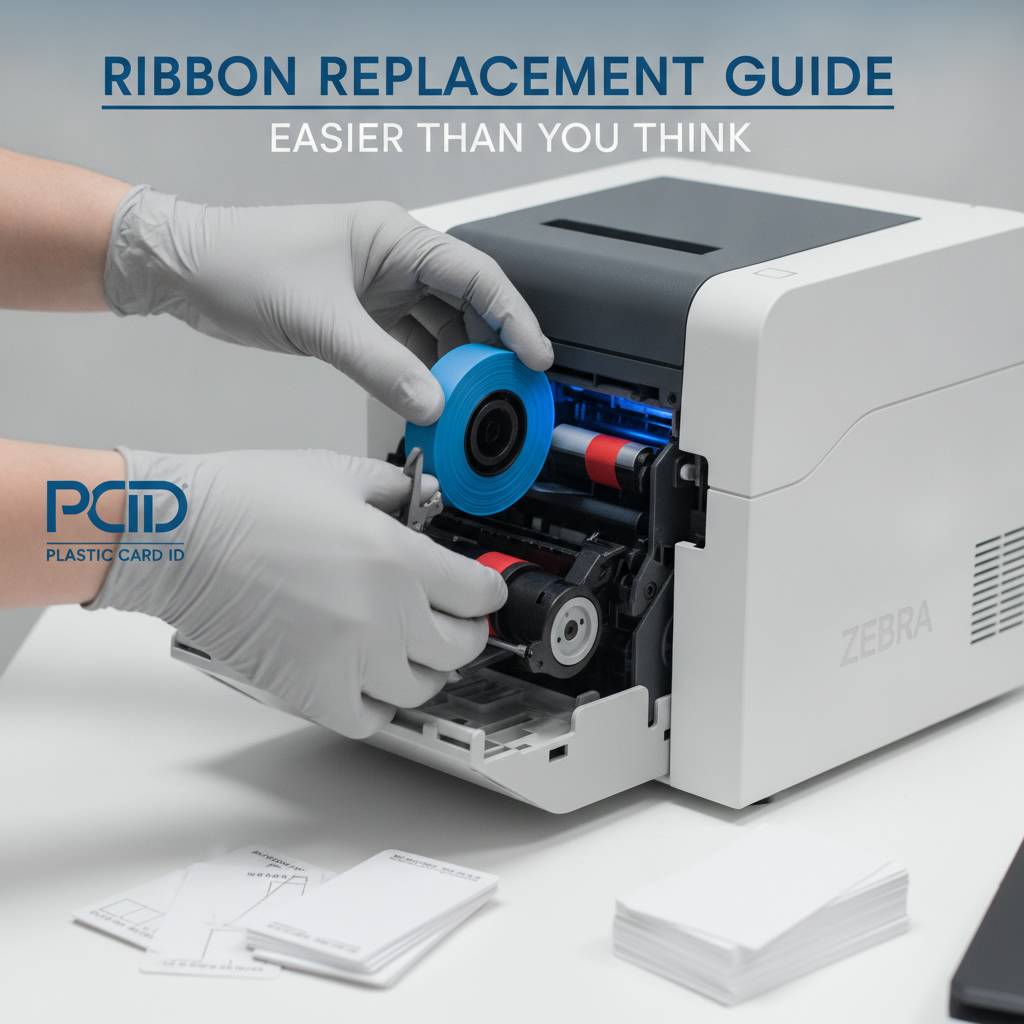 While the general process is consistent, each major brand has quirks worth knowing. Understanding the small differences between Evolis, Fargo, Zebra, and Matica printers helps you avoid the "why isn't this working?" moment that costs time and wastes cards. These aren't complicated - just specific.
Every printer line CPE carries has been selected for its reliability and ease of use. Part of that ease comes from intelligent ribbon handling systems that guide users through the replacement process with on-screen prompts or indicator lights. Still, knowing what to expect in advance beats troubleshooting blind.
Evolis Printer Ribbon Replacement Notes
Evolis printers use a snap-in cartridge system that makes ribbon replacement particularly fast. The Badgy200, Zenius, and Primacy2 all use a similar cartridge format - snap in, close the lid, done. One important Evolis-specific note: these printers read a chip on the ribbon cartridge to confirm compatibility and track remaining yield. Always use genuine Evolis ribbons to ensure the chip communicates correctly.
The Evolis Agilia, positioned at the premium end of the Evolis lineup, features a more advanced ribbon handling system suited to higher-volume, higher-quality output. Ribbon installation on the Agilia is similarly straightforward, but calibration matters more at this tier - the printhead precision on the Agilia is optimized for edge-to-edge output, so ribbon quality is correspondingly more important.
Fargo and Zebra Ribbon Replacement Notes
Fargo printers (now part of the HID Global family) use a "print ribbon cassette" system on models like the DTC1250e and DTC4500e. The cassette slides into the printer horizontally and locks with a satisfying click. Fargo ribbons are security-conscious by design - many include void patterns on used ribbon panels specifically to prevent re-imaging of printed card data from discarded ribbons. This makes proper disposal of used Fargo ribbons a security best practice, not just a housekeeping one.
Zebra ZC-series printers use a top-loading ribbon design that is beginner-friendly. The ZC100 and ZC300 accept color ribbons in a cartridge format similar to Evolis. Zebra's True Colour ribbon system includes a security chip that authenticates the ribbon before printing begins. If the printer displays a ribbon authentication error, the ribbon may be counterfeit or damaged - reach out to 800.835.7919 for verified genuine Zebra ribbon replacements.
Matica Printer Ribbon Notes
The Matica Event Printer is built for high-speed, high-volume on-site badge printing at events, trade shows, and large-scale credentialing operations. Ribbon changes on the Matica are designed to be rapid, reflecting the high-throughput demands of its primary use environment. Ribbons for the Matica Event Printer have higher yield ratings to reduce the frequency of mid-event swaps.
For event environments, it's worth pre-loading a second ribbon cartridge before the event begins and having a trained operator familiar with the swap process. In a scenario where 500 badges need to print in 90 minutes, a smooth ribbon change that takes 90 seconds beats a fumbled one that takes 10 minutes. Preparation is everything.
Troubleshooting Common Ribbon Issues After Replacement
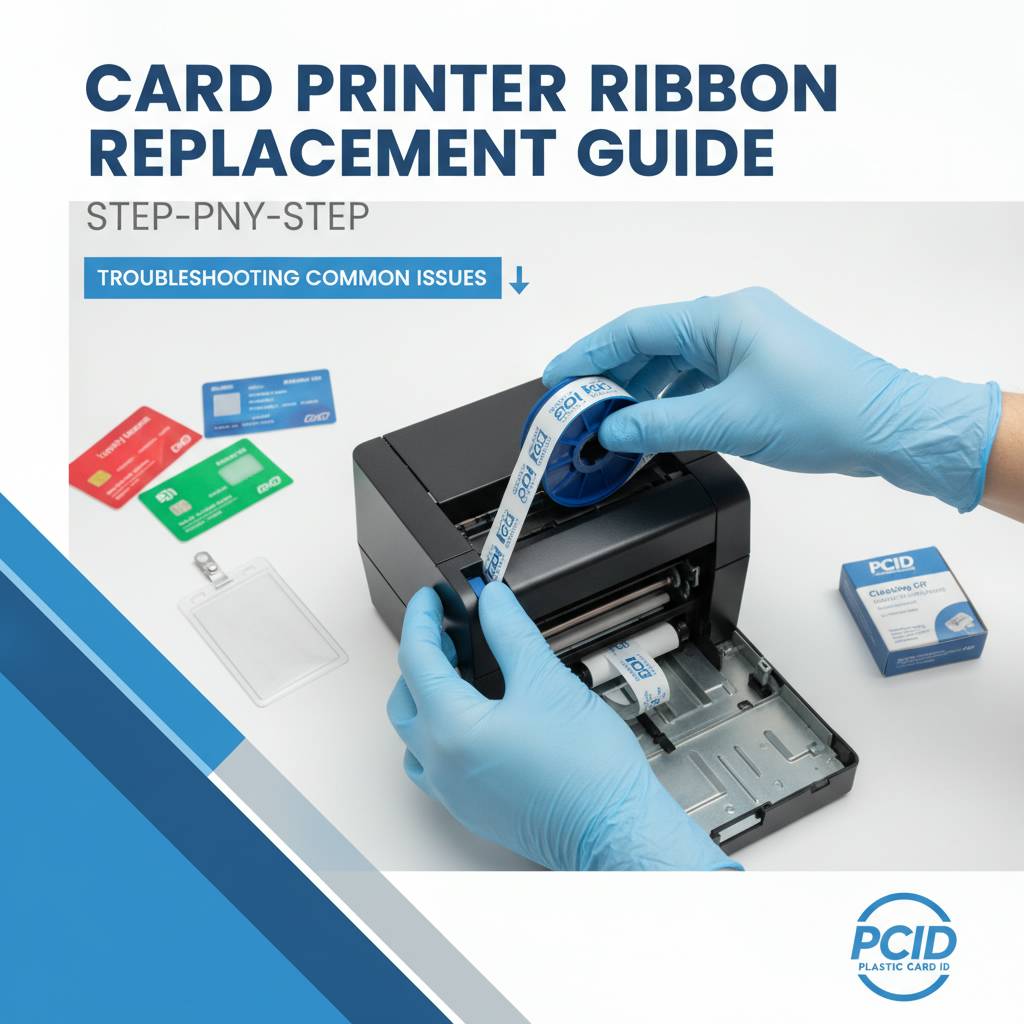 Even with careful installation, things occasionally go sideways. Print quality problems after a ribbon change are almost always traceable to one of a handful of causes. Before calling for support, run through this quick diagnostic process - nine times out of ten, you'll find and resolve the issue in under five minutes.
The most common post-replacement issues are color banding, faded output, ribbon wrinkle, and "ribbon not detected" errors. Each has a distinct cause and a clear fix. Understanding these saves you time, wasted cards, and frustration.
Color Banding or Streaks on Printed Cards
Banding - horizontal stripes across the printed image - usually indicates either a dirty printhead or a ribbon that isn't tracking smoothly. After installing a new ribbon, always run a printhead cleaning cycle using a cleaning card before printing your first real card. This removes dust and debris that may have entered the printer during the ribbon change.
If banding persists after cleaning, check that the ribbon is fully and evenly seated on both spools or cartridge posts. Uneven tension on the ribbon causes it to ripple slightly during printing, producing banding. Remove and reinstall the ribbon, making sure both ends are locked in firmly before retrying.
Ribbon Not Detected or Authentication Error
An "invalid ribbon" or "ribbon not recognized" error immediately after installation usually means one of two things: the ribbon chip wasn't recognized, or the ribbon type doesn't match the printer's configuration. First, remove the ribbon and reinsert it firmly - a loose contact between the ribbon chip and the printer's reader is a surprisingly common cause of this error.
If the error persists, confirm the ribbon part number matches your printer model. On chip-equipped printers like Evolis and Zebra models, using a ribbon from a different product line - even within the same brand - will trigger an authentication failure. Always verify the exact SKU before installing.
Wrinkled or Torn Ribbon Film
Wrinkled ribbon is almost always caused by misalignment during installation - specifically, one spool end being higher than the other, creating uneven ribbon tension across its width. A wrinkled ribbon that passes through the printhead during printing can scratch the printhead element, which is an expensive repair. If you notice wrinkling before printing begins, stop immediately and reinstall the ribbon.
Torn ribbon is less common but can occur if the old ribbon wasn't fully removed before the new one was loaded, or if ribbon debris from a previous jam was left in the feed path. Before loading any new ribbon, do a quick visual scan of the print path to confirm it's clear. A clean path makes for clean prints.
Supplies That Work Alongside Your Ribbon Replacement Routine
Replacing a ribbon isn't a standalone task - it's part of a broader printer maintenance rhythm that includes cleaning, monitoring, and occasional component inspection. The printers that last longest are the ones that receive consistent care, not just reactive fixes when something breaks. Pairing every ribbon change with a quick cleaning cycle is the simplest upgrade you can make to your card program.
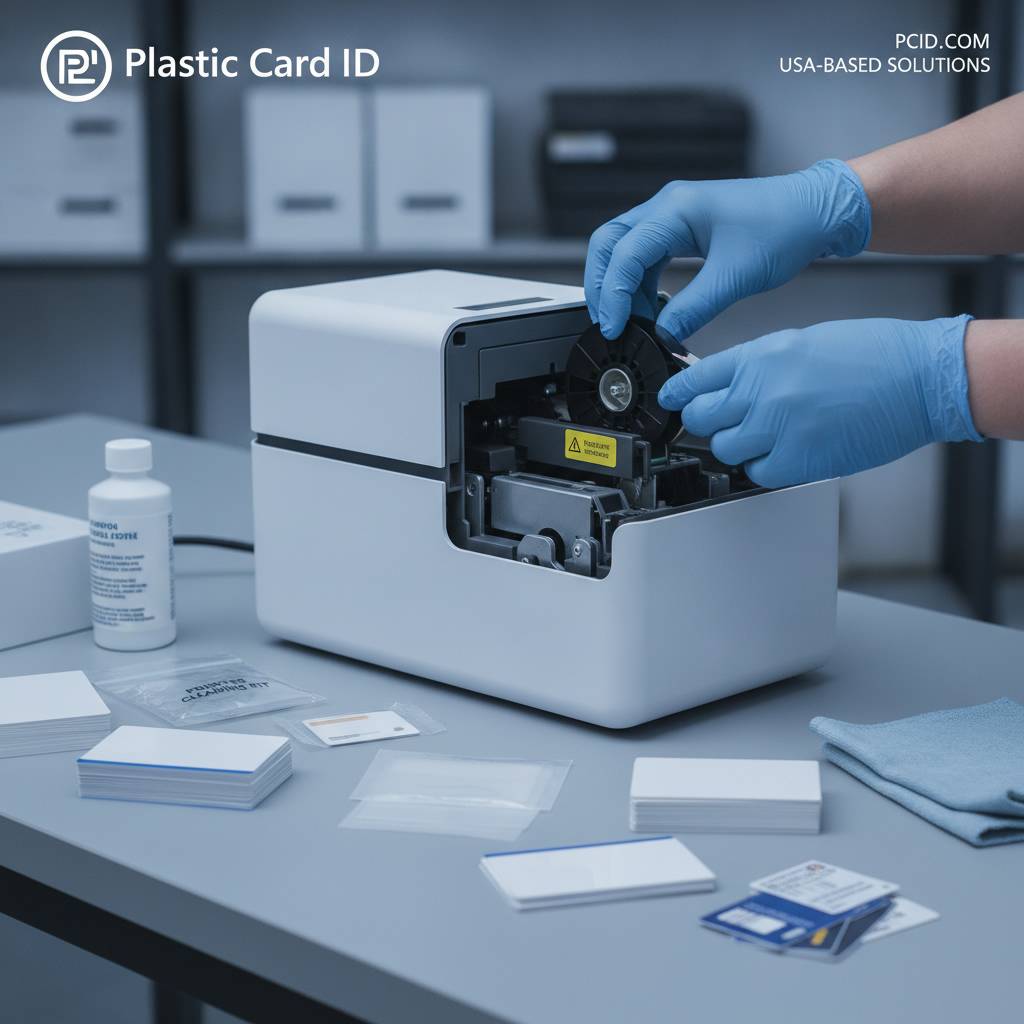
CPE supplies the full range of consumables and maintenance products to keep card programs running smoothly. From YMCKO and monochrome ribbons to cleaning kits, lamination modules, and encoding upgrades, everything a card program needs is available in one place.
Cleaning Kits and Printhead Care
A cleaning kit typically includes cleaning cards and cleaning swabs. The cleaning cards run through the printer's card path, picking up dust and adhesive residue. The swabs are used to manually clean the printhead surface with isopropyl alcohol when card-based cleaning isn't sufficient. Most manufacturers recommend running a cleaning card every time you install a new ribbon - it's a 30-second habit that extends printhead life significantly.
Printhead replacement is costly - often $150-$400 depending on the printer model. Regular cleaning prevents the progressive buildups that cause premature printhead failure. If your cards are showing consistent vertical or horizontal scratches that don't resolve after cleaning, it's time to inspect the printhead for physical damage.
Lamination Modules and Overlay Ribbons
Some Evolis models, particularly the Primacy2 and Agilia, support add-on lamination modules that apply a protective laminate film to finished cards. Laminate overlay dramatically increases card durability, protecting the printed surface from scratching, UV fading, and general wear. Lamination modules have their own consumable film rolls, which are replaced separately from the print ribbon.
If your card program requires enhanced durability - hospital ID badges, outdoor event credentials, access control cards that see daily swipe use - lamination is worth the investment. The process adds only a few seconds per card and the cost per card for laminate film is modest relative to the value of the finished credential.
Encoding Upgrades for Magnetic Stripe and Smart Chip
For organizations printing access control cards, hotel key cards, or loyalty program cards, encoding capabilities are as important as print quality. Many Evolis, Fargo, and Zebra printers support optional magnetic stripe encoding modules installed alongside the print ribbon. Encoding happens during the same print pass, meaning a fully personalized, encoded card comes off the printer in a single cycle.
Smart chip encoding modules (both contact and contactless) are available for select printer models. These upgrades are installed as internal hardware additions to the printer and operate independently of the print ribbon - the ribbon handles color, the encoder handles data. Contact CPE to confirm which encoding options are available for your specific printer model.
Why Businesses Across the U.S. Rely on Plastic Card ID
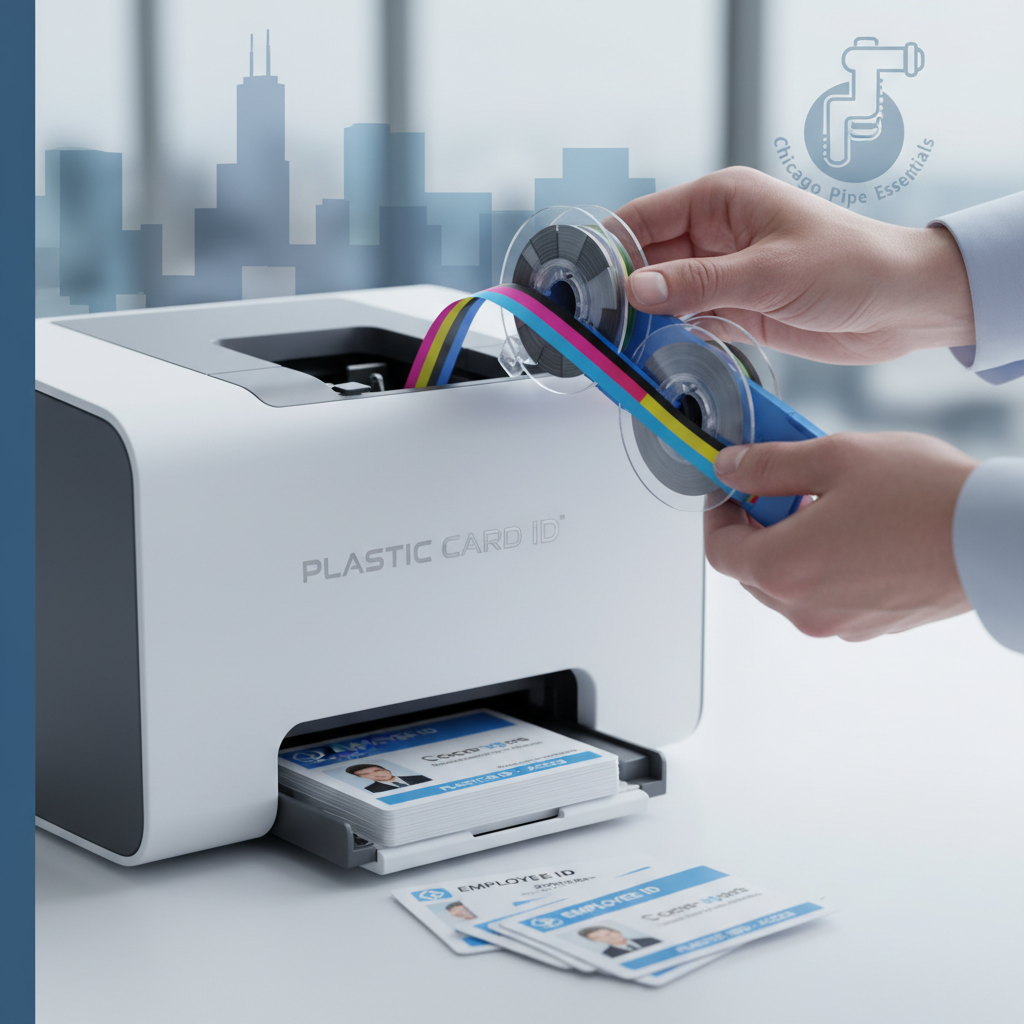 There's a reason over 100,000 customers have trusted Plastic Card ID with their card printing programs over more than 25 years. The combination of a curated, professional-grade product lineup and genuine expertise in card program operations sets this supplier apart from generalist electronics distributors who happen to carry a few printers. Every product in the lineup - from entry-level Badgy200 units to industrial Matica systems - has been selected because it performs reliably in real-world business environments.
Whether you're building a new card program from scratch or maintaining an established one, getting the right ribbon for your printer is just the beginning. The broader ecosystem of supplies, accessories, and knowledgeable support makes the difference between a card program that runs on autopilot and one that generates constant headaches. CPE is built to keep programs in the first category.
A Curated Lineup Built for Business
The printer brands carried by Plastic Card ID - Evolis, Fargo, Zebra, and Matica - represent the industry's most trusted professional-grade equipment. These are not consumer devices repurposed for business use. They are purpose-built systems engineered for daily, consistent operation with predictable output quality and manageable consumable costs. Each brand occupies a specific niche, from Evolis's versatile desktop range to Fargo's security-focused ID solutions to the Matica Event Printer's high-speed throughput.
Entry-level programs printing under 1,000 cards per year are well served by the Evolis Badgy200 - a compact, cost-effective unit that produces professional results without overcomplicating the workflow. Mid-tier programs printing 1,000-6,000 cards monthly will find the Evolis Zenius and Primacy2 hitting the right balance of speed, quality, and feature depth. Ribbon replacement on any of these models follows the same straightforward principles covered in this guide.
Support That Goes Beyond the Sale
Buying a printer is easy. Running a card program successfully is an ongoing operation - one that requires consistent access to the right ribbons, the right cleaning supplies, and the right expertise when questions arise. Plastic Card ID provides that ongoing support, not just a transaction. For questions about ribbon compatibility, encoder upgrades, or troubleshooting a print quality issue, real answers are available by calling 800.835.7919.
The experience accumulated over 25-plus years of serving businesses across every industry means that whatever card printing challenge you're facing - unusual print artifacts, ribbon compatibility confusion, mid-event printer issues - someone on the team has encountered it before and knows the fix. That institutional knowledge is part of what you get when you buy from Plastic Card ID.
What Card Programs Plastic Card ID Supports
The range of card programs supported spans virtually every business category. Employee ID cards, access control credentials, student IDs, membership cards, loyalty cards, hotel key cards, event badges and credentials - all of these programs rely on the same core infrastructure: a professional card printer, the right ribbon, and consistent supplies. Each use case has slightly different requirements, and Plastic Card ID stocks the ribbons, encoding modules, and accessories to address them all.
Organizations just starting a card program often underestimate the ongoing consumable requirements - particularly ribbon consumption. A company onboarding 50 new employees per month, issuing dual-sided full-color ID badges, will burn through approximately one YMCKO ribbon per month at minimum. Planning that supply chain from the beginning - and having a reliable supplier - makes the whole program run predictably. That's exactly what Plastic Card ID is built for.
Ready to order your next ribbon replacement or explore the full lineup of card printing supplies? Call Plastic Card ID today at 800.835.7919 and speak with a specialist who understands your printer, your program, and exactly what you need to keep the cards flowing.
Previous Page