Card Printer Troubleshooting Common Issues: Quick Fix Guide
Table of Contents []
- Card Printer Troubleshooting Common Issues - Plastic Card ID
- Why Card Printers Develop Problems in the First Place
- Diagnosing and Fixing Print Quality Problems
- Resolving Card Feed and Jam Problems
- Encoding Errors: Magnetic Stripe and Smart Chip Problems
- Connectivity, Driver, and Software Troubleshooting
- Preventive Maintenance: Avoiding Problems Before They Start
- Get Expert Help From Plastic Card ID - Your Trusted Card Printing Partner
Card Printer Troubleshooting Common Issues - Plastic Card ID
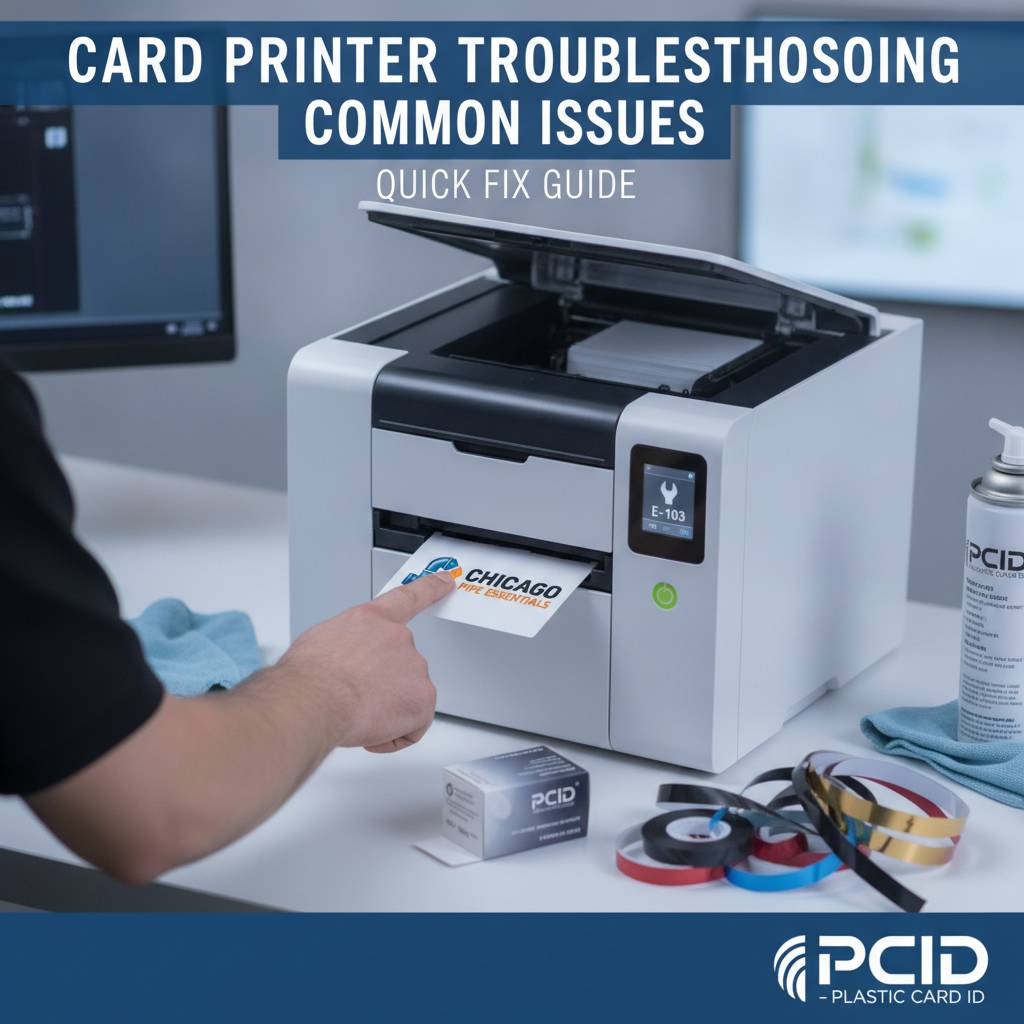 Something goes wrong mid-batch. The ribbon snaps. Cards feed crooked. Colors print streaky or faded, and your deadline is in two hours. If you've ever managed an in-house card printing program, you know exactly how that moment feels. Card printer troubleshooting doesn't have to spiral into panic - most problems have clear causes and fast fixes, and this guide walks through all of them.
Whether you're running an Evolis Primacy2 for employee IDs, a Fargo printer for high-security access cards, or a Zebra unit for membership programs, the fundamentals of diagnosing and resolving printer issues remain surprisingly consistent. At Plastic Card ID, we've supported card printing programs across every industry imaginable, and the same core questions come up again and again.
| Symptom | Likely Cause | Suggested Fix |
|---|---|---|
| Faded or streaky print | Dirty print head or low ribbon tension | Clean print head, replace ribbon |
| Card jam | Debris in card path, card thickness mismatch | Clear path, verify card spec (30 mil standard) |
| Ribbon breaks mid-print | Wrong ribbon type, dirty printer | Match ribbon to printer model, clean rollers |
| Poor color accuracy | Driver misconfiguration or old ribbon | Update driver, use fresh ribbon |
| Printer not recognized by PC | Driver issue or USB conflict | Reinstall driver, try different USB port |
| Encoding errors on mag stripe | Wrong track setting or coercivity mismatch | Check LoCo/HiCo setting, verify data format |
Why Card Printers Develop Problems in the First Place
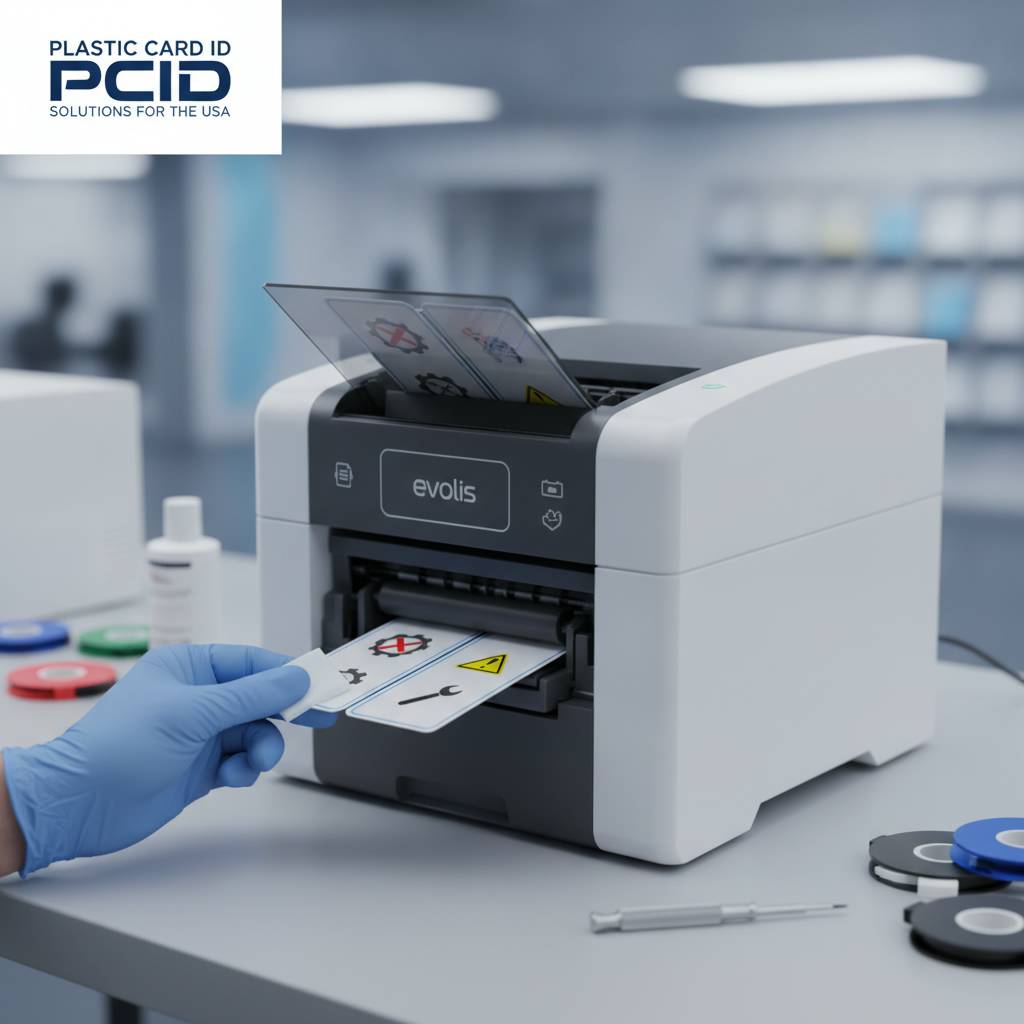 Card printers are precision machines. Unlike standard paper printers, they transfer dye directly onto PVC plastic using heat-sensitive ribbons, coordinate timing with encoding modules, and manage card thickness tolerances measured in fractions of a millimeter. Even minor environmental factors or small maintenance oversights can cascade into noticeable print quality degradation faster than most users expect.
Dust accumulation, ribbon mismatches, and inconsistent card stock are the three leading culprits behind most service calls. Understanding the mechanical relationship between the printhead, the ribbon, and the card surface puts you in a much stronger position to self-diagnose problems before they worsen - or before they consume an entire ribbon roll on cards destined for the trash.
The Role of Printer Environment
Humidity and airborne particulates are genuine adversaries to card printer performance. High humidity can cause cards to stick together in the input hopper, leading to multi-feeds and jams. Low humidity accelerates static buildup, which attracts dust directly onto the card surface before printing even begins.
Ideally, card printers should operate in a controlled indoor environment away from open windows, manufacturing floors, or areas with high foot traffic that kicks up debris. Positioning your printer on a stable, clean surface away from HVAC vents is a small step that prevents a disproportionate number of recurring issues.
Card Stock Quality and Compatibility
Not all PVC cards are created equal. Standard CR80 cards (the size of a credit card) should measure 30 mil in thickness for most desktop printers. Thicker or thinner cards will cause feed errors, jam sensors, or even physically damage transport rollers over time. Always verify that your card stock matches the specifications listed in your printer's manual.
Cards exposed to direct sunlight, extreme temperatures, or moisture before printing may have degraded surfaces that resist dye transfer. Storing card stock in sealed packaging in a consistent environment is one of those easy habits that eliminates a surprising number of print quality complaints before they happen.
Ribbon Compatibility Matters More Than You Think
Every card printer manufacturer designs their ribbon chemistry to interact specifically with their printhead temperature profiles. Using a third-party or incorrect ribbon type is one of the most common causes of premature printhead failure, ribbon breakage, and inconsistent color output. This is not a minor issue - printhead replacements can cost $200-$600 depending on the model.
YMCKO ribbons (yellow, magenta, cyan, black resin, and overlay) are the standard for full-color card printing, while monochrome ribbons in black, blue, white, or gold serve single-color applications at significantly lower cost per card. Matching the correct ribbon type to your exact printer model is non-negotiable for reliable performance and ribbon longevity.
Diagnosing and Fixing Print Quality Problems
Faded prints, horizontal white lines across the card, color banding, or blotchy patches - these are symptoms with specific diagnoses. The good news is that the majority of print quality issues trace back to two components: the printhead and the ribbon. Narrowing down which one is responsible takes only a few minutes of methodical testing.
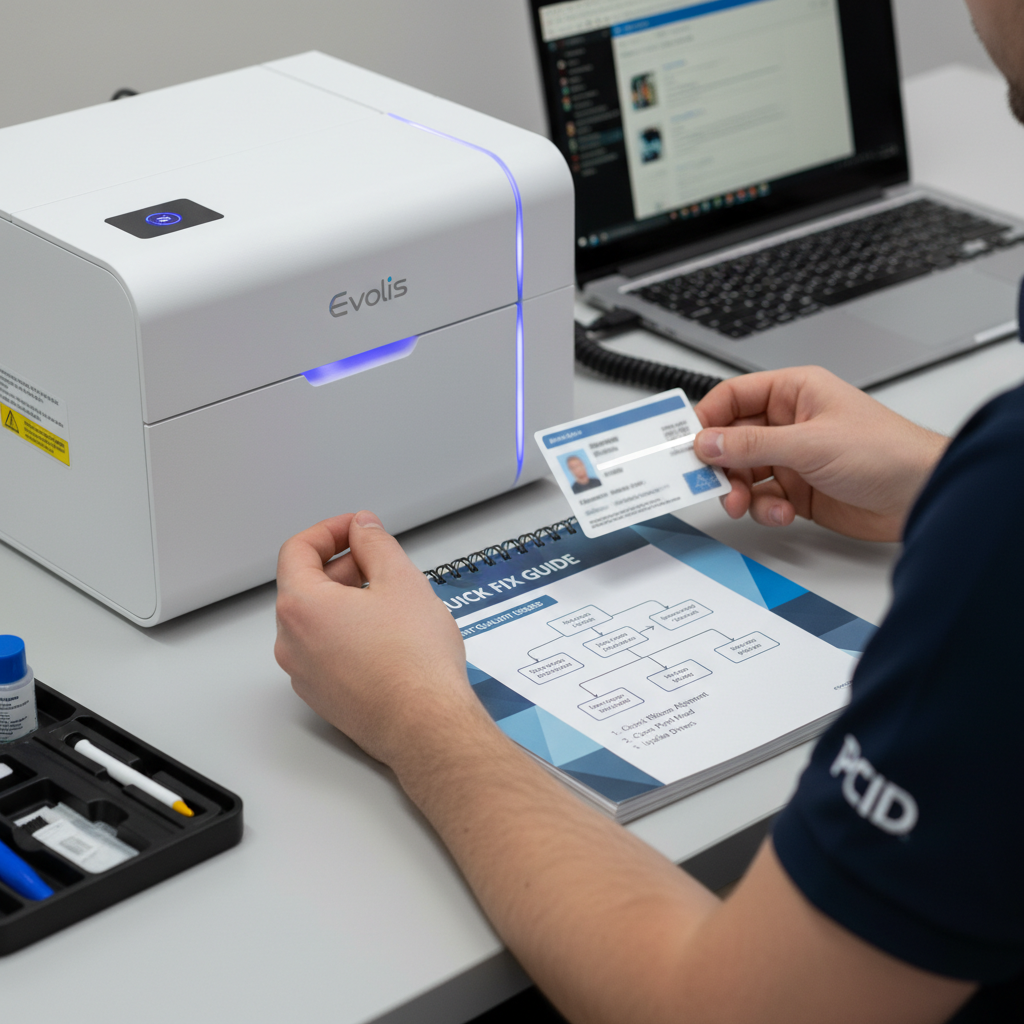
Start by printing a test card using your printer's built-in test function (not from your design software). This isolates the printer's own output from any software variables. If the test card shows the same problem, the issue is hardware or consumable-related. If the test card prints clean, the problem lives in your driver settings, design file, or software configuration.
Printhead Cleaning Procedures
The printhead is a thin strip of heating elements running the width of the card. Dust, ribbon residue, and microscopic card debris accumulate on it over time, creating the characteristic horizontal white lines or blank streaks that appear in prints. Most manufacturers recommend cleaning the printhead every time you change a ribbon, which translates to consistent quality across every batch.
Cleaning kits typically include IPA-saturated cleaning cards and cleaning swabs. Run a cleaning card through the printer's cleaning cycle first. For stubborn residue, a cleaning swab applied gently along the printhead element line - never with abrasive materials - removes buildup that cleaning cards can't reach. Always allow the printhead to cool before cleaning with a swab.
Identifying Ribbon-Related Print Failures
A ribbon that breaks mid-print, wrinkles, or produces colors that appear shifted or muted usually signals one of three problems: the ribbon is the wrong type for that printer, the ribbon is damaged from improper storage, or the printer's rollers are dirty and creating uneven ribbon tension. Inspect the ribbon for physical damage before loading it - creases or tears near the spool will cause breaks under the heat and tension of printing.
If ribbons break consistently at the same point during each card print, a partially contaminated or damaged roller may be creating a friction hotspot. Cleaning the rubber transport rollers with an IPA-based cleaning card usually resolves recurring break patterns. Replacing rollers is a more involved repair but may be necessary for printers with heavy accumulated mileage.
Color Calibration and Driver Settings
Prints that look too dark, too light, or have colors that don't match your design file often point to driver-level calibration settings rather than hardware problems. Most card printer drivers include color correction sliders, gamma adjustments, and print intensity settings. Resetting your driver settings to factory defaults and then testing output is often the fastest way to rule out a settings drift that crept in unnoticed.
Monitor color profiles also play a role. If your design software uses an sRGB workspace but your driver is configured for a different profile, colors will look accurate on screen and wrong on the card. Matching color profiles across your design tool, operating system, and printer driver eliminates this variable entirely.
Resolving Card Feed and Jam Problems
 Card jams are among the most disruptive issues in any printing operation - they interrupt batches, potentially damage cards in transit, and can occasionally harm internal transport components if handled incorrectly. Never yank a jammed card from a printer with force. Most printers have a manual card eject function or an accessible panel for jam clearance specifically to avoid forcing the card through the mechanism.
The input hopper, transport rollers, and output stacker are the three zones where jams most commonly originate. Each zone has distinct causes and solutions worth understanding individually if you want to troubleshoot efficiently rather than repeatedly restart the printer hoping for a different result.
Input Hopper Issues and Multi-Feed Prevention
When two or more cards feed simultaneously from the hopper, the printer detects an irregular thickness and either jams or ejects both cards unused. This is almost always caused by cards that are stuck together - often from static buildup, minor surface texture variations in the card stock, or loading too many cards into the hopper at once.
Fanning your card stack before loading - separating each card from its neighbor by bending the stack gently and releasing - discharges static and breaks any surface adhesion. Most desktop printers accommodate hoppers of 50-100 cards; keeping loads within that recommended range reduces multi-feed frequency significantly. Overloading the hopper adds feed pressure that works against the separator mechanism designed to deliver one card at a time.
Clearing Jams Without Damaging Your Printer
Open the printer's main access panel and locate the jammed card. Most Evolis, Fargo, and Zebra printers allow you to manually rotate a small knob or wheel to inch the card backward toward the input slot or forward to the output. Consult your printer's manual for the exact location of this mechanism - using it correctly avoids placing stress on the transport rollers or printhead assembly.
After clearing the jam, run a cleaning card before resuming normal printing. Jammed cards sometimes leave debris, adhesive residue, or microscopic PVC particles on the rollers that will affect the next several cards if not removed. A post-jam cleaning cycle is a simple habit that prevents secondary print quality issues from compounding your original problem.
Transport Roller Maintenance
Rubber transport rollers degrade over time, losing the grip needed to move cards smoothly through the print path. Glazed or hardened rollers are common in printers that have processed tens of thousands of cards without regular cleaning. A roller cleaning card - run through at least once per ribbon change - keeps the rubber surface tacky and functional.
When cleaning cards no longer restore proper grip and cards continue slipping or mis-tracking, roller replacement may be necessary. This is a documented service procedure for all major brands. CPE recommends keeping a cleaning kit stocked at all times - the cost of a $15-$30 cleaning kit is negligible compared to the disruption of a mid-batch jam in a high-volume print run.
Encoding Errors: Magnetic Stripe and Smart Chip Problems
 For organizations printing access control cards, hotel key cards, loyalty cards, or student IDs with embedded data, encoding errors represent a uniquely frustrating category of issues. The card can look visually perfect and still fail to work if the encoded data is incorrect, written to the wrong track, or written at the wrong coercivity level. Understanding how encoding works mechanically helps diagnose these failures faster.
Magnetic stripe encoding writes data via a magnetic head positioned along the card's path. Smart chip encoding uses a separate contact station that makes physical contact with the card's chip contacts. Both processes are timing-dependent - the card must be positioned precisely when encoding occurs, and any slippage or contamination of the contact surface can cause a write failure.
Magnetic Stripe Coercivity Mismatches
Magnetic stripe cards come in two varieties: LoCo (low coercivity, typically 300 Oe) and HiCo (high coercivity, 2750 Oe). Hotel key cards are almost always LoCo. Access control and loyalty cards are typically HiCo. If you encode a HiCo card using LoCo settings - or vice versa - the data will either not write at all or will erase and rewrite incorrectly when the card is used near other magnetic fields.
Most card printer drivers allow you to switch between LoCo and HiCo encoding in the settings. Verify that your printer's encoding module coercivity setting matches the card stock you're using before every major batch. This single setting mismatch is responsible for a large percentage of magnetic stripe encoding failures reported by users who are otherwise doing everything correctly.
Smart Chip Encoding Contact Issues
Smart chip encoding failures often result from contaminated chip contacts on the card surface or debris on the printer's encoding station contacts. Even fingerprints on the card's chip contacts before insertion can cause a write failure. Handle smart card stock by the edges, and periodically clean the encoding station contacts using the manufacturer's recommended cleaning procedure.
If encoding errors persist after cleaning, verify that your card management software is sending data in the correct format for your chip type. Contact IC cards and contactless cards use different encoding protocols entirely; loading a contactless card into a contact encoding station will produce an error every time. Confirming card and encoder compatibility before purchasing card stock prevents this mismatch from occurring at scale. For guidance, reach out to Plastic Card ID at 800.835.7919.
Verifying Encoded Data Before Full Batch Runs
Always print and encode a small test batch of five to ten cards before committing to a full production run. Use a card reader or the appropriate verification device to confirm that encoded data reads correctly before scaling up. This practice catches encoding errors when they affect ten cards rather than five hundred.
Some printer models include built-in encoding verification that reads data back after writing and flags errors automatically. If your printer supports this feature, enable it. The slight reduction in throughput speed is more than offset by the elimination of batch-level encoding failures that would require reprinting entire runs.
Connectivity, Driver, and Software Troubleshooting
A printer that the computer doesn't recognize - or recognizes unreliably - creates a uniquely frustrating workflow disruption. Driver conflicts, outdated firmware, and USB port issues account for the majority of connectivity complaints across all major card printer brands. The diagnostic process here is systematic: isolate each variable starting from the physical connection and working up through the software stack.
Begin with the basics. Is the USB cable fully seated at both ends? Try a different USB port, ideally one directly on the computer rather than through a hub. USB hubs introduce power distribution variability that can cause intermittent recognition failures with devices that draw consistent power, as card printers do during initialization.
Driver Installation and Update Procedures
Card printer drivers are more complex than standard paper printer drivers because they manage printhead temperature profiles, encoding timing, color calibration, and lamination module coordination simultaneously. An outdated or corrupted driver is one of the most common hidden causes of erratic print behavior that users spend weeks attributing to hardware problems.
Download the latest driver directly from the manufacturer's website - Evolis, Fargo, Zebra, and Matica all maintain current driver downloads. Uninstall the existing driver completely using your operating system's device manager before installing the new version. Partial driver overwrites can leave conflicting registry entries that cause the same problems the update was meant to solve.
Network-Connected Printer Configuration
Mid-range and enterprise card printers often connect via Ethernet to support shared printing across multiple workstations. Network configuration introduces additional troubleshooting variables: IP address conflicts, firewall rules blocking printer ports, and print queue management across multiple users can all create printing failures that look hardware-related but are entirely network-originated.
Assign your network card printer a static IP address rather than relying on DHCP assignment. A printer whose IP address changes when the DHCP lease renews will disappear from every connected workstation until manually reconnected. Static IP assignment for shared office printers is standard IT practice that eliminates an entire category of recurring connectivity complaints.
Firmware Updates and When to Apply Them
Printer firmware controls low-level hardware behavior - how the printhead ramps temperature, how encoding timing is coordinated, and how error codes are generated and reported. Manufacturers periodically release firmware updates that address known bugs, improve encoding reliability, and enhance compatibility with new card stock types. Contact CPE at 800.835.7919 if you're unsure whether a firmware update is appropriate for your specific situation.
That said, firmware updates on functioning printers should be approached deliberately. Never update firmware mid-batch or on a printer actively supporting a time-sensitive production run. Schedule firmware updates during downtime, read the release notes carefully for any known compatibility changes, and always confirm that the update file matches your exact printer model number - not just the product family.
Preventive Maintenance: Avoiding Problems Before They Start
 The most efficient form of card printer troubleshooting is the kind that never becomes necessary. A structured preventive maintenance routine dramatically extends printhead life, reduces ribbon waste, and keeps throughput consistent across the entire operational life of your printer. Most maintenance tasks take under five minutes and require no technical expertise.
Cleaning kits are your primary preventive maintenance tool. Every kit from CPE includes cleaning cards for roller and card path maintenance, swabs for printhead cleaning, and instructions specific to compatible printer models. Establishing a regular cleaning schedule - tied to ribbon changes rather than the calendar - keeps maintenance consistent regardless of how busy your printing volume gets in any given month.
Building a Cleaning and Maintenance Schedule
- Clean the printhead with a cleaning swab every time you install a new ribbon
- Run a cleaning card through the transport path every ribbon change
- Inspect the input hopper for debris and dust buildup weekly
- Check card stock for edge burrs or surface contamination before loading new batches
- Verify ribbon tension and seating after any printer transport or move
- Run a full deep-cleaning cycle monthly using the manufacturer's recommended procedure
- Log all maintenance activities with date and ribbon count to track patterns
Logging maintenance might feel like administrative overhead, but it serves a practical diagnostic purpose: when a problem does arise, maintenance logs help you determine whether it developed gradually (suggesting wear) or suddenly (suggesting a specific event or consumable change as the cause). Patterns in your maintenance log often predict failures before they become critical.
Supplies Inventory Management
Running out of ribbon mid-batch, discovering your last cleaning kit was used months ago, or realizing your spare printhead was the wrong model for your current printer - these are operational failures, not hardware failures, but they cause just as much disruption. Maintaining a minimum stock of critical consumables ensures that when a printer does need attention, you can address it immediately.
At minimum, keep one spare ribbon roll, one cleaning kit, and a set of the most common replacement parts your printer manual identifies as user-replaceable. For printers running at 1,000-6,000 cards per month, two to three ribbon rolls in stock is a reasonable buffer. For lower-volume programs using a model like the Evolis Badgy200 printing under 1,000 cards per year, a single spare ribbon and a cleaning kit covers most contingencies.
When to Call for Professional Service
Some issues are beyond what cleaning, driver updates, and consumable replacements can resolve. Mechanical failures in the card transport mechanism, broken printhead heating elements, damaged encoding station contacts, and corrupted printer firmware after a failed update are situations that warrant professional service. Attempting to repair these issues without proper tools and technical training risks converting a $300 repair into a total printer loss.
Knowing when to escalate is itself a valuable troubleshooting skill. If you've worked through the complete diagnostic sequence for a given problem - cleaned, replaced consumables, updated drivers, verified card stock compatibility - and the issue persists, escalation is the right call. Documenting exactly what you've already tried saves significant time when speaking with technical support and ensures the conversation starts at the appropriate diagnostic level.
Get Expert Help From Plastic Card ID - Your Trusted Card Printing Partner
 Across more than 25 years and over 100,000 customers served throughout the United States, Plastic Card ID has built its reputation on one straightforward premise: businesses deserve reliable, professional-grade card printing solutions backed by genuine expertise. Whether you're troubleshooting a persistent ribbon issue, evaluating an upgrade to a higher-throughput printer, or simply stocking up on cleaning supplies and ribbons, we're here to help you keep your card program running at its best.
We carry complete lines of printer ribbons - YMCKO full-color, monochrome, and specialty formulations - plus cleaning kits, lamination modules, encoding upgrades for magnetic stripe and smart chip, input hoppers, and card carriers and sleeves. Every consumable in our catalog is matched to the printer models we sell, eliminating the compatibility guesswork that causes so many of the problems outlined in this guide.
Call Plastic Card ID today at 800.835.7919 and speak directly with a card printing specialist who understands your equipment, your application, and exactly what you need to resolve your issue and get back to printing.
Previous Page